

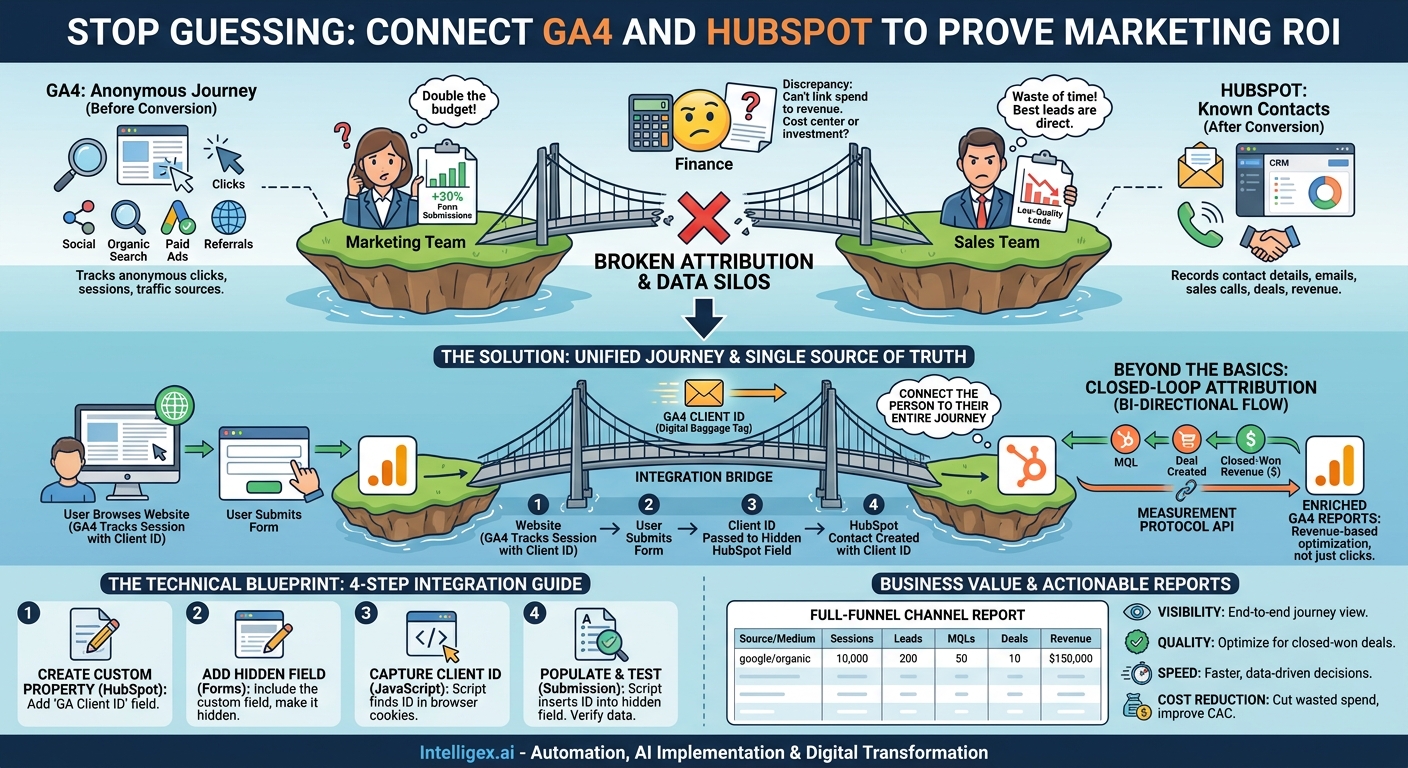
Your marketing team presents a compelling report: a recent LinkedIn campaign drove a 30% increase in website form submissions. They want to double the budget. Meanwhile, your sales team reports that their best leads are coming from “direct traffic” and referrals. They see the LinkedIn leads as low-quality and a waste of their time. Finance, caught in the middle, sees a discrepancy. They can’t connect marketing spend to closed-won revenue, so they treat the marketing budget as a cost center to be scrutinized, not an investment to be scaled. This scenario is incredibly common, and it stems from a fundamental data disconnect. Your web analytics platform and your CRM are telling two different, incomplete stories. The solution isn’t a new dashboard or more spreadsheets. It’s about creating a single, trustworthy source of truth by integrating Google Analytics 4 (GA4) and HubSpot.
Why Your Attribution Model is Broken (And How You Know It)
The core of the problem lies in data silos. GA4 is brilliant at tracking the anonymous user journey. It sees every click, page view, and session from users before you know who they are. It understands which channels bring traffic to your digital doorstep. HubSpot, on the other hand, is the system of record for known contacts. It tracks every email open, sales call, and deal stage for the people who have identified themselves by filling out a form or contacting your team. By default, these two systems don’t share their unique insights. The moment a user submits a form, the rich pre-conversion history from GA4 is typically lost. HubSpot knows the new lead exists, but it has no memory of the ten blog posts they read or the specific ad that finally convinced them to reach out.
This gap creates significant friction and inefficiency across the business:
- Sales and Marketing Misalignment: Marketing optimizes for top-of-funnel metrics like clicks and form fills (leads), while Sales cares about bottom-of-funnel results like meetings booked and deals closed (revenue). Without a shared data language, they can’t work together effectively.
- Inaccurate ROI Calculation: If you can’t trace a $100,000 deal back to the specific paid search keyword or social media campaign that initiated the journey, you’re just guessing where to invest your next dollar. This forces Finance to make conservative, blanket budget cuts instead of strategic, data-driven allocations.
- Poor Customer Experience: When Sales has no context on a lead’s browsing history, the first conversation is cold. Imagine a salesperson trying to pitch a generic demo to a prospect who has already spent hours reading technical documentation on your site about a specific, advanced feature. It’s an immediate disconnect.
- High “Direct” Traffic: A notoriously high percentage of “direct” traffic in your reports is often a symptom of broken tracking. These aren’t all people typing your URL from memory. Many are users whose original source was lost during their journey across devices or sessions before they finally converted.
The Core Concept: Connecting Anonymous Clicks to Real Revenue
The goal of integrating GA4 and HubSpot is to build a bridge across that data gap. The strategy is to pass a single, non-personally identifiable piece of information, the GA4 Client ID, from a user’s browser session into their HubSpot contact record at the moment of conversion. The Client ID is a unique, randomly generated string that GA4 assigns to a user’s browser or device. It’s the key that unlocks their entire anonymous browsing history within your GA4 property.
Think of it as a digital baggage tag. As a visitor moves through your website, GA4 is tracking their “bag” (their session data) using this unique tag. When they fill out a HubSpot form, you simply ensure that the baggage tag’s number is written down on their new contact profile. Now, you can connect the person (the HubSpot contact) to their entire journey (the GA4 session history). This simple connection creates immense business value.
The Business Value of a Unified Journey View
Visibility: For the first time, you can see the complete, end-to-end customer journey. You can answer questions like, “What sequence of content does a user typically consume before requesting a demo?” or “Which marketing channel brings us visitors who, three months later, become our largest customers?”
Quality: Marketing can finally shift its focus from quantity to quality. Instead of just generating leads, they can optimize for leads that Sales actually closes. This transforms marketing from a lead generation factory into a revenue-driving engine.
Speed: With trustworthy data, decisions happen faster. Budget meetings become collaborative and strategic instead of contentious and defensive. You can quickly reallocate spend from an underperforming campaign to a high-performer mid-quarter, without waiting for manual spreadsheet analysis.
Cost Reduction: By identifying which channels and campaigns consistently produce low-quality leads or deals that never close, you can confidently cut wasted spend and reinvest it where it matters most, directly improving your Customer Acquisition Cost (CAC).
The Technical Blueprint: A Step-by-Step Integration Guide
Connecting these two platforms requires a small but precise technical setup. While the concept is simple, the execution needs to be flawless to ensure data integrity. The process involves capturing the GA4 Client ID from the user’s browser and passing it into a hidden field on your HubSpot forms.
Here is a high-level, step-by-step process. You will likely need a web developer or a marketing operations specialist comfortable with JavaScript to implement this correctly.
- Create a Custom Property in HubSpot. Before you can store the data, you need a place for it to live. Go to your HubSpot settings and create a new custom contact property. Call it something clear and consistent, like “GA Client ID” or “ga_client_id”. Make it a single-line text field.
- Add a Hidden Field to Your HubSpot Forms. Edit the forms you want to use for this tracking. Add a new field to each form. Choose the custom property you created in the previous step. In the form editor, make this field hidden. This ensures it won’t be visible to users, but it will be ready to accept data.
- Capture the GA4 Client ID with JavaScript. This is the most technical step. You need to add a small script to your website’s header or via a tag manager. The script’s job is to find the GA4 Client ID stored in the user’s browser cookies and make it available. The specific code can vary, but it often involves using the `gtag.js` API that Google provides.
- Populate the Hidden Field on Form Submission. You need another piece of JavaScript that finds all HubSpot forms on a page. This script will wait for the user to submit the form. Just before the data is sent to HubSpot, the script will take the Client ID captured in Step 3 and insert it into the hidden form field you created in Step 2.
- Test, Verify, and Roll Out. Start with a single, low-traffic form. Submit a test conversion yourself. Then, go into HubSpot and find the new contact record you just created. Check the “GA Client ID” custom property. If you see a long string of numbers and dots, it worked. Once you’ve confirmed the process is reliable, you can roll out the changes to all your key conversion forms.
Beyond the Basics: Sending HubSpot Events Back to GA4
The initial integration creates a powerful one-way data flow from GA4 to HubSpot. This allows your sales and marketing teams to analyze customer journeys within the CRM. However, to achieve a truly closed-loop attribution model, you need to send key deal-stage and revenue data from HubSpot back to GA4.
This is accomplished using the Google Analytics Measurement Protocol. The Measurement Protocol is an API that allows you to send data directly to GA4’s servers from your own systems, like a CRM. You can set up HubSpot workflows that trigger an API call whenever a contact or deal reaches a critical milestone.
Imagine this workflow:
- A contact’s lifecycle stage changes to “Marketing Qualified Lead” (MQL) in HubSpot.
- A workflow triggers and sends an “MQL” event to GA4, along with the contact’s Client ID.
- Later, a deal associated with that contact is created. The workflow sends a “Deal_Created” event to GA4.
- Finally, the deal is marked as “Closed-Won” with a value of $50,000. The workflow sends a “purchase” event to GA4 with the corresponding revenue.
Now, your Google Analytics reports are enriched with actual business outcomes. Marketing can build a report in GA4 that shows not just which campaigns generated clicks, but which ones generated $50,000 in closed-won business. This allows for optimization based on revenue, not just vanity metrics.
Putting It All Together: Reports You Can Actually Use
Once the data is flowing in both directions, you can build reports that were previously impossible. These reports provide a shared language for Sales, Marketing, and Finance to discuss performance and strategy.
Example 1: The Full-Funnel Channel Performance Report
In GA4’s reporting interface, you can now customize your traffic acquisition reports. Instead of only looking at Sessions, Users, and generic “conversions” (like a simple form fill), you can add columns for your custom events sent from HubSpot. Your new report can show:
- Source / Medium: google / organic
- Sessions: 10,000
- Leads (Form Fills): 200
- MQLs: 50
- Deals Created: 10
- Total Revenue: $150,000
This view immediately tells you that while another channel might generate more raw leads, “google / organic” is generating the most revenue. This is actionable intelligence.
Example 2: Content ROI Analysis
By connecting GA4 data to HubSpot outcomes, you can finally prove the value of content marketing. You can analyze which landing pages or blog posts were viewed by users who eventually became high-value customers. This helps your content team move beyond measuring page views and start measuring pipeline influence. They can confidently decide to write more articles on “Topic A” because the data shows it’s a key part of the journey for your enterprise clients.
Data Governance and Privacy Considerations
Integrating customer data across platforms is powerful, but it requires a responsible approach to data governance and privacy. This is not a step to be overlooked.
Consent is Paramount: This entire tracking mechanism depends on lawful user consent. Your website’s cookie consent banner must clearly explain what you are tracking and why. The integration should only activate for users who have explicitly opted in. This is non-negotiable for complying with regulations like GDPR and CCPA.
Practice Data Minimization: The beauty of using the GA4 Client ID is that it is pseudonymous. It’s a random string of characters, not an email address or a name. It is critical that you do not send any Personally Identifiable Information (PII) into GA4’s standard reports. Stick to passing only the necessary identifiers and keep sensitive customer data securely in your CRM.
Implement Access Controls: Not everyone in your company needs to see the granular clickstream data of every lead. Use the permission settings in both GA4 and HubSpot to define roles and restrict access. Marketing analysts may need access to aggregated attribution reports in GA4, while sales reps only need to see the relevant journey highlights on a contact record in HubSpot.
Maintain Human Oversight: Data provides the “what,” but human expertise provides the “why.” An attribution model might show that a specific channel is underperforming, but a human analyst might realize it’s because that channel is crucial for brand awareness that pays off indirectly six months later. Use this data to inform your decisions, not to make them for you.
Your Next Steps to Building a Trusted Attribution Model
Moving from a state of data chaos to a trusted, integrated attribution model is a journey. It requires a clear plan and collaboration across teams. Here is how you can get started.
- Audit Your Current State. Get your key stakeholders from Sales, Marketing, and IT in a room. Map out your current customer data flow. Where does data live? How is it collected? Where are the gaps and discrepancies? Acknowledge the symptoms of a broken model.
- Define Your Key Business Events. Agree on a unified set of definitions for the most important stages in your customer journey. What officially constitutes a “Lead,” an “MQL,” or a “Sales Qualified Lead”? These definitions will become the events you track.
- Secure the Right Resources. Identify who has the skills to implement the technical changes. This might be an in-house developer, a marketing operations professional with technical skills, or an external integration partner. They will be responsible for the JavaScript, platform configurations, and testing.
- Start Small and Build Momentum. Don’t try to boil the ocean. Begin by implementing the one-way GA4 Client ID to HubSpot connection for a single, important conversion form. Run it for a few weeks, validate that the data is accurate, and show the initial insights to your stakeholders. Use this small win to build trust and secure buy-in for the full, bi-directional integration.
By methodically connecting your analytics and CRM, you can finally move beyond debates based on conflicting reports. You can build a shared understanding of how your business truly grows, enabling smarter investment, tighter alignment, and a better experience for the customers you work so hard to acquire.
Your Next Read:
Get a FREE
Proof of Concept
& Consultation
No Cost, No Commitment!