

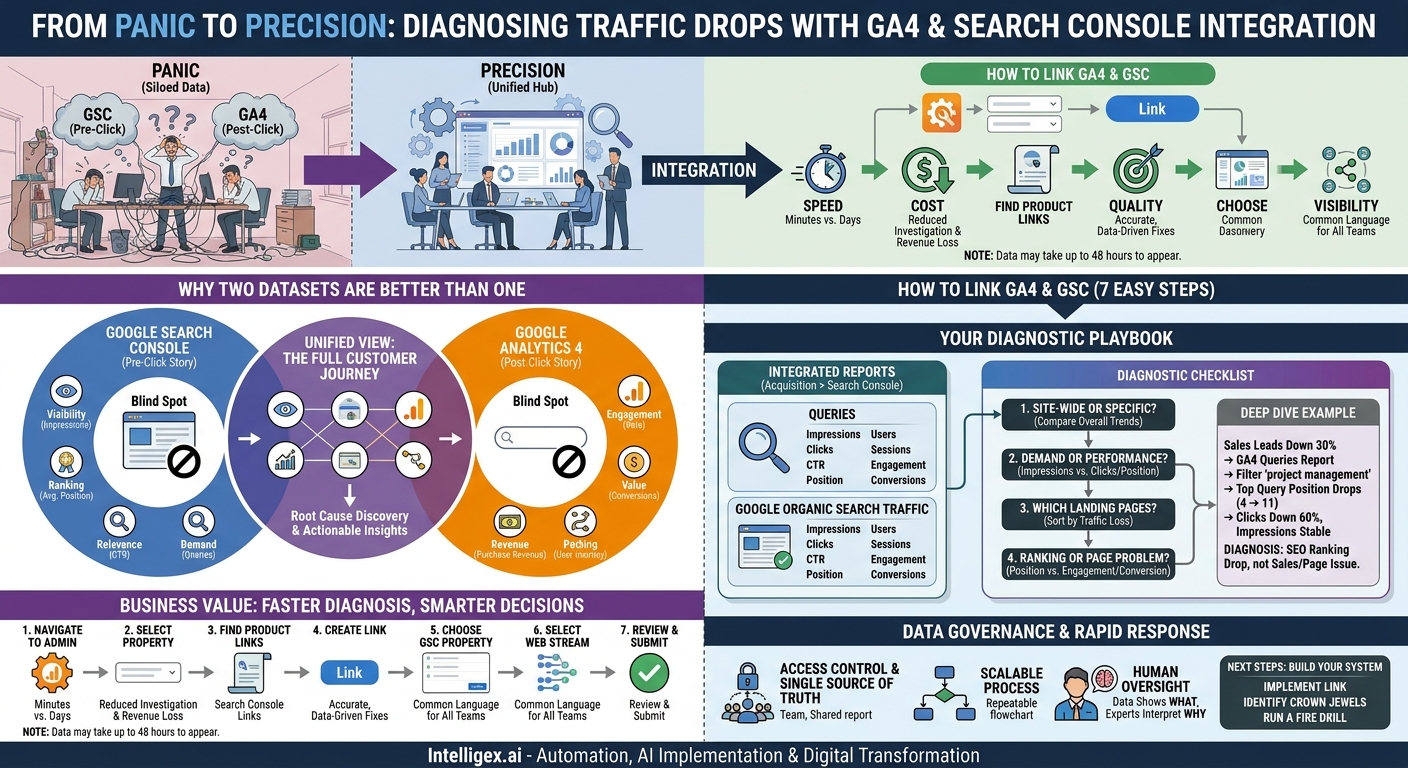
A sudden drop in website traffic can send a shockwave through any organization. Marketing scrambles to find the cause, Sales worries about a shrinking pipeline, and leadership demands answers. The traditional diagnostic process is often slow and siloed. The SEO team looks at Google Search Console (GSC) for ranking data, while the analytics team digs through Google Analytics 4 (GA4) for user behavior. Each has a piece of the puzzle, but they rarely see the full picture together. This separation leads to wasted hours, speculative theories, and delayed recovery.
By integrating GSC and GA4, you create a unified diagnostic hub. This single source of truth connects pre-click search performance with post-click user engagement, allowing your teams to pinpoint the root cause of a traffic drop with speed and precision. It transforms a high-stress, reactive firefight into a structured, data-driven investigation, saving time, protecting revenue, and providing clarity when it matters most.
Why Two Datasets Are Better Than One
To understand the power of this integration, it’s crucial to recognize what each platform does best and where its limitations lie. Using them in isolation gives you an incomplete story, like reading only the odd or even pages of a book.
Google Search Console: The Pre-Click Story
GSC tells you everything that happens before a user reaches your website. It is the definitive source for understanding your visibility and performance within Google’s search results pages. Its core value lies in answering questions like:
- Visibility: How many people saw a link to our site? (Impressions)
- Ranking: Where did our page rank on average for a specific search term? (Average Position)
- Relevance: Did our page title and description convince users to click? (Click-Through Rate or CTR)
- Demand: What exact phrases are people searching for to find us? (Queries)
However, GSC’s knowledge ends the moment a user clicks your link. It has no idea if that user converted, bounced immediately, or spent ten minutes reading your content. It can tell you that you lost traffic, but not the business impact of that loss.
Google Analytics 4: The Post-Click Story
GA4 picks up where GSC leaves off, tracking everything a user does after they land on your website. It is the system of record for on-site behavior and business outcomes. GA4 is built to answer critical questions such as:
- Engagement: Did visitors interact with the page or leave immediately? (Engagement Rate)
- Value: Did they complete a key action, like filling out a form or making a purchase? (Conversions)
- Revenue: How much business did that traffic generate? (Purchase Revenue)
- Pathing: What other pages did they visit during their session? (User Journey)
The blind spot for GA4 is the “why.” It can show you a 20% drop in sessions from organic search, but it cannot tell you if that drop was caused by a lower ranking for a critical keyword, a decrease in search demand, or a technical issue preventing Google from crawling your page. It sees the symptom, not the source.
Integrating the two platforms bridges this gap. It allows you to overlay GSC’s search query and ranking data directly onto GA4’s user behavior and conversion data. Suddenly, you can see the entire customer journey, from search query to final conversion, all in one place.
The Business Case: Faster Diagnosis, Smarter Decisions
Linking these tools is not just a technical exercise for the marketing department. It delivers tangible business value across the organization by improving the speed and quality of decision-making during a critical event like a traffic drop.
Speed: Instead of spending days exporting CSV files from two systems and trying to merge them in a spreadsheet, your team can get answers in minutes. This speed is critical. A problem identified and fixed in one day instead of one week can be the difference between a minor blip and a significant revenue loss.
Cost: Faster diagnosis directly reduces costs. It minimizes the hours spent by analysts, developers, and agency partners on investigation. More importantly, it shortens the duration of the traffic drop, mitigating the financial impact on lead generation and sales.
Quality: With integrated data, your diagnosis is more accurate. Consider a sales team that sees a drop in leads from a “Request a Demo” page.
- Without integration, the team might assume the page is broken and file an urgent IT ticket.
- With integration, they can see in GA4 that clicks from the query “enterprise CRM integration” have plummeted. They can also see that the average search position for that query dropped from 3 to 12. The problem is not the page; it is an SEO issue. This insight routes the problem to the right team for a faster, more effective solution.
Visibility: A unified dashboard creates a common language for different departments. An Operations team worried about e-commerce sales for a specific product line can look at the same report as the SEO team. They can see if sales are down because search impressions for “heavy-duty waterproof boots” have declined (a market demand issue) or because the page’s click-through rate has fallen (a marketing copy or competitor issue). This shared visibility prevents finger-pointing and aligns teams around a single version of the truth.
A Step-by-Step Guide to Linking Search Console and GA4
The process of linking these two powerful platforms is straightforward, but it requires the correct permissions. Before you begin, ensure you have “Editor” role access to the Google Analytics 4 property and are a “verified owner” of the Google Search Console property. If you do not have these permissions, you will need to ask your site administrator for access.
Once you have the necessary permissions, follow these steps:
- Navigate to GA4 Admin: Log in to your Google Analytics account. In the bottom-left corner, click on the “Admin” gear icon.
- Select the Correct Property: In the “Property” column, make sure you have selected the GA4 property you wish to link. This is especially important if you manage multiple websites or apps.
- Find Product Links: Scroll down in the “Property” column to the “Product Links” section. Click on “Search Console Links.”
- Create the Link: In the top-right corner of the Search Console Links screen, click the blue “Link” button.
- Choose the GSC Property: A new panel will appear. Click “Choose accounts” to see a list of the Search Console properties for which you are a verified owner. Select the one that matches your GA4 property and click “Confirm.”
- Select the Web Stream: Click “Next,” then “Select” to choose the appropriate web data stream from your GA4 property. For most websites, there will be only one option here.
- Review and Submit: On the final screen, review your selections. The GSC property and GA4 web stream should both be correct. Click “Submit” to complete the integration.
After you click submit, you will see a “Link created” notification. It is important to note that it can take up to 48 hours for data from Search Console to begin appearing in your GA4 reports. Do not panic if you do not see it immediately.
Your Diagnostic Playbook: Using the Integrated Reports
Once the integration is complete and data is flowing, GA4 will be enriched with two new reports. You can find them by navigating to Reports > Acquisition > Search Console. The two reports are:
- Queries: Shows the specific Google search queries that brought users to your site, along with GSC metrics (Impressions, Clicks, CTR, Average Position) and GA4 metrics (Users, Sessions, Engagement Rate, Conversions).
- Google Organic Search Traffic: Shows similar data, but aggregated by landing page instead of by query.
When you notice a drop in organic traffic, use these reports as your starting point. Here is a quick diagnostic checklist to guide your investigation.
Initial Diagnostic Checklist
- Is the drop site-wide or specific? First, compare the overall trend in your GA4 organic traffic with the overall trend in your GSC clicks and impressions. If all three are down, the issue may be broad, like a major Google algorithm update or a technical site-wide problem.
- Is it a demand or performance issue? In the GSC Queries report, look at your top traffic-driving queries. Did Impressions drop? That suggests fewer people are searching for your key terms (a potential market or seasonal shift). Or did Impressions stay stable while Clicks and Average Position dropped? That points directly to an SEO performance issue, like a loss of ranking to a competitor.
- Which landing pages are most affected? Switch to the “Google Organic Search Traffic” report. Sort by the change in Clicks or Sessions to identify the specific pages that have lost the most traffic. This focuses your investigation on the highest-impact areas.
- Is it a ranking problem or a page problem? For a landing page that lost traffic, look at its data row. If its Average Position in GSC has worsened significantly, you have a ranking problem. However, if its position is stable but its Engagement Rate or Conversion Rate in GA4 has dropped, the issue may be with the page itself. Perhaps a recent update introduced a bug, changed the layout, or slowed down the page load time.
Example Deep Dive Scenario
Imagine your Head of Sales reports that leads for your flagship “Project Management Suite” are down 30% this month. Here is how you use the integrated data to diagnose the problem:
- You go to the GA4 Reports > Acquisition > Search Console > Queries report.
- You filter the report to only show queries containing “project management.”
- You immediately spot the problem. Your top query, “best project management software,” has seen its Average Position drop from 4 to 11. Clicks are down 60%, but Impressions are stable. This tells you the search demand is still there, but you are no longer visible on the first page of results.
- You now have a clear, data-backed hypothesis: a ranking drop for a high-intent commercial keyword is the direct cause of the lead decline. The problem is not with the sales team, the website’s conversion rate, or market demand. It is a specific SEO issue that needs immediate attention.
This level of diagnostic clarity is impossible without the integrated data. You have moved from a vague problem (“leads are down”) to a specific, actionable insight (“we lost our ranking for ‘best project management software'”) in just a few clicks.
Common Pitfalls and How to Avoid Them
While powerful, the integrated data requires careful interpretation. Being aware of common pitfalls will prevent you from drawing the wrong conclusions.
Data Discrepancies: You will notice that GSC “Clicks” do not perfectly match GA4 “Sessions.” This is normal and expected. A single user might click a link, close their browser, and then click the same link again within 30 minutes. GSC would count two clicks, while GA4 would count only one session. Do not get stuck on reconciling these numbers perfectly. Focus on the trends and directional changes, which should align.
Correlation is Not Causation: Just because a ranking dropped at the same time a page’s conversion rate declined does not automatically mean one caused the other. A recent website deployment could have introduced a bug that broke a form and negatively impacted SEO factors. Always look for a holistic view. Corroborate your findings with information from other teams, such as IT release schedules or marketing campaign calendars.
(not set) Data: You will sometimes see “(not set)” as a value in your reports, particularly for landing pages. This often happens when the session data from GA4 cannot be joined with the data from GSC. While it can be a sign of a tracking issue, a small amount is normal. If it represents a large portion of your data, you may want to investigate your setup, but do not let it derail your primary analysis.
Data Governance and Building a Scalable Process
Integrating sensitive performance data is the first step. The next is ensuring it is used responsibly and effectively across the organization. This is not just about tools; it is about building a data-driven culture.
First, consider access control. Who needs to see this combined view? Your SEO and marketing teams are obvious candidates. But also consider product managers responsible for key site sections, sales leaders who rely on inbound leads, and e-commerce managers who own revenue goals. Providing them with read-only access to these reports empowers them to self-serve insights about their areas of the business.
Second, establish this integrated view as the single source of truth for organic performance. When a traffic drop occurs, the process should be to start with these GA4 reports, not with disparate spreadsheets. This creates a repeatable, scalable diagnostic process that ensures everyone is looking at the same data and speaking the same language. It prevents wasted time debating whose data is “right.”
Finally, remember the importance of human oversight. The data shows you what happened and can strongly suggest why. However, a skilled analyst or strategist is still needed to interpret the results in the context of broader business goals, competitive landscapes, and recent site changes. The goal is to use the data to empower your experts, not replace them.
Next Steps: Building Your Rapid Response System
An unexpected drop in organic traffic will always be a cause for concern, but it does not have to be a cause for panic. By linking Google Search Console and GA4, you build the foundation for a calm, controlled, and effective response. You replace guesswork with data and siloed analysis with cross-functional clarity.
Take these actions today to prepare your organization:
- Implement the Link: If you have not already, follow the steps outlined above to connect your GSC and GA4 properties. It takes less than five minutes.
- Identify Your Crown Jewels: Work with business leaders to identify the most critical landing pages and search queries for each department (e.g., top lead-gen pages for Sales, top product categories for E-commerce). Create a saved report or dashboard in GA4 to monitor them.
- Run a Fire Drill: Schedule a 30-minute workshop with key stakeholders. Walk them through the integrated reports and simulate a traffic drop for a key landing page. This proactive training builds familiarity and confidence, so when a real issue arises, your team is ready to act.
By taking these steps, you transform your analytics from a reactive reporting tool into a proactive diagnostic system, enabling your organization to protect its most valuable digital asset: its organic visibility.
Your Next Read:
Get a FREE
Proof of Concept
& Consultation
No Cost, No Commitment!
