

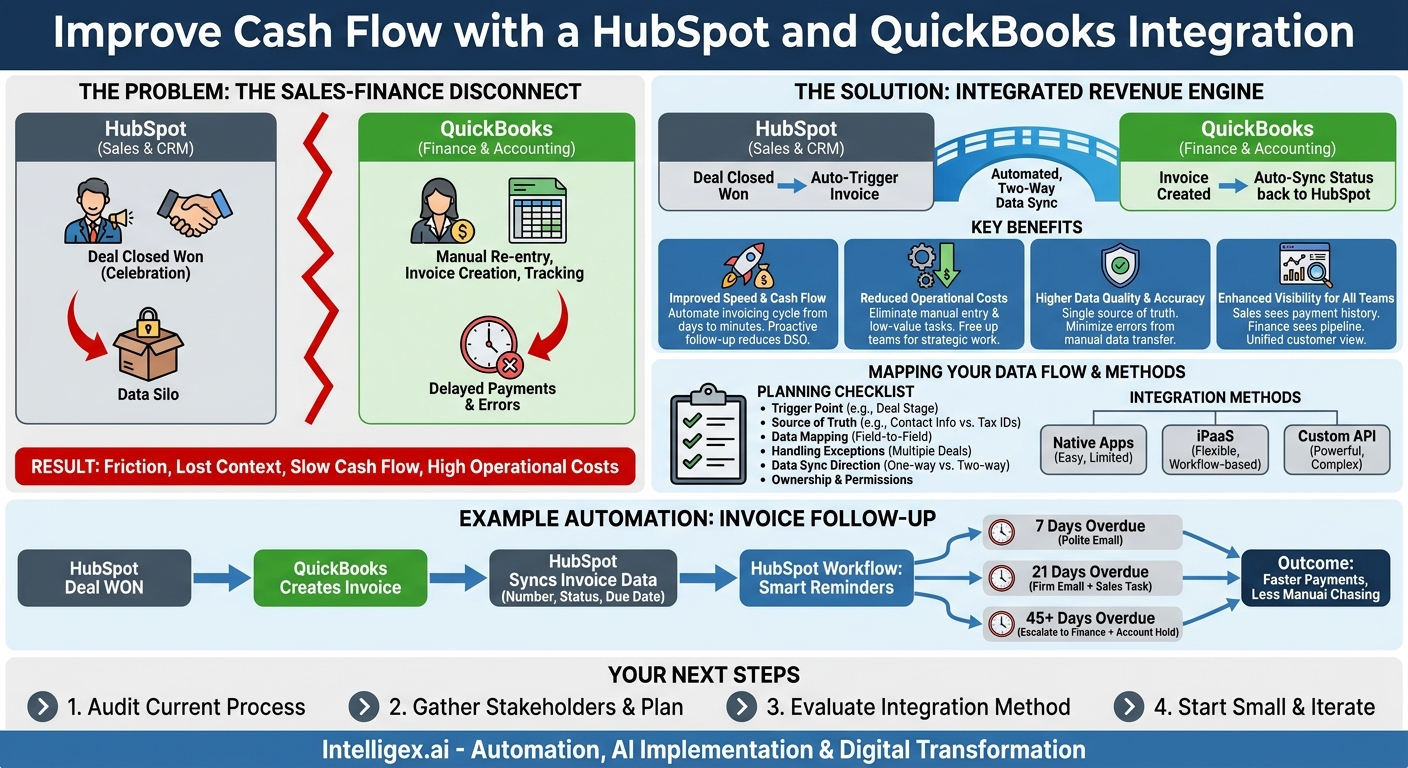
The gap between your sales and finance teams is more than just an organizational challenge. It’s a cash flow problem hiding in plain sight. Your sales team closes a deal in HubSpot, celebrating a win. Meanwhile, your finance team manually re-enters customer and deal information into QuickBooks, creates an invoice, sends it, and then begins the tedious process of tracking payments and sending reminders. Every manual step in this disjointed process introduces delays, risks errors, and consumes valuable time that could be spent on strategic growth.
This disconnect creates friction. Sales doesn’t know if a long-term client has three overdue invoices. Finance has no visibility into the upcoming sales pipeline to forecast cash flow accurately. Important customer context gets lost in translation between systems. Integrating QuickBooks and HubSpot directly addresses these issues, transforming a fragmented workflow into a streamlined, automated, and intelligent revenue operations engine.
Why the HubSpot-QuickBooks Disconnect Hurts Your Business
Leaving these two critical systems siloed is a direct tax on your efficiency and profitability. The cost isn’t just about wasted hours. It impacts your customer relationships and your ability to make informed decisions. By connecting them, you create a unified view of the customer lifecycle, from initial lead to final payment, unlocking significant business value across several key areas.
Improved Speed and Cash Flow
The faster an accurate invoice gets to a customer, the faster you get paid. Automation eliminates the lag time between a deal closing in HubSpot and an invoice being generated in QuickBooks. This can shrink your invoicing cycle from days to minutes. Furthermore, by automating follow-up based on real-time payment status, you can systematically reduce your Days Sales Outstanding (DSO), directly improving your cash flow.
Reduced Operational Costs
Consider the cumulative hours your team spends on manual data entry, cross-referencing spreadsheets, and chasing down information. An integration automates these low-value tasks. Finance no longer needs to manually create customer records in QuickBooks that already exist in HubSpot. Sales reps don’t have to email the finance department to ask, “Has Client X paid their last invoice yet?” This frees up your skilled employees to focus on higher-value activities like financial analysis, strategic planning, and building customer relationships.
Higher Data Quality and Accuracy
Every time a human transfers data from one system to another, there is a risk of error. A typo in an address, an incorrect amount, or a missed line item can lead to payment disputes, customer frustration, and costly rework. An integration ensures that the data from the HubSpot deal record, which is the source of the agreement, is used to create the QuickBooks invoice. This creates a single source of truth and dramatically reduces the likelihood of costly mistakes.
Enhanced Visibility for All Teams
When financial data is accessible within HubSpot (with appropriate permissions), it empowers your entire organization. Your sales team can see a customer’s payment history before trying to upsell them. Your customer success team has the full financial context when handling a support ticket. Leadership can view dashboards that combine sales pipeline data with actual revenue, leading to more accurate forecasting and strategic planning.
Mapping Your Data Flow: The Foundation of a Successful Integration
Before you even look at a connector or an API, you must start with a plan. A successful integration is built on a clear understanding of your business processes and how you want data to move between systems. Jumping straight into the technology without this blueprint is a recipe for confusion and poor results. Start by gathering stakeholders from sales, finance, and operations to answer some fundamental questions.
The goal is to define the “if this, then that” logic that will power your automation. For example, when a deal in HubSpot is moved to the “Closed Won” stage, what exactly should happen? Should it automatically create a new customer in QuickBooks if one doesn’t exist? Should it generate a draft invoice for the finance team to review, or should it send the invoice directly to the client? The details matter.
Use this checklist to guide your initial planning discussion:
- Trigger Point: What specific action or stage in HubSpot should initiate an action in QuickBooks? (e.g., Deal Stage change, custom property updated).
- Source of Truth: Which system holds the master record for different data types? For example, HubSpot is likely the source of truth for contact email addresses, while QuickBooks is the source of truth for legal business names and tax IDs.
- Data Mapping: Which fields in HubSpot correspond to which fields in QuickBooks? Map them out explicitly. (e.g., HubSpot “Company Name” maps to QuickBooks “Customer Name”; HubSpot “Deal Amount” maps to QuickBooks “Invoice Total”).
- Handling Exceptions: What happens if a customer has multiple open deals? How are discounts, taxes, or shipping costs represented in HubSpot deals and transferred to QuickBooks invoices?
- Data Sync Direction: Is the data flow one-way (HubSpot to QuickBooks) or two-way (bidirectional)? For invoice status, the flow should be from QuickBooks back to HubSpot.
- Ownership and Permissions: Who is responsible for maintaining the integration? Who in your organization should be able to see sensitive financial data within HubSpot?
Documenting these rules creates a clear roadmap for implementation and ensures that the final solution aligns perfectly with your business needs.
Choosing Your Integration Method: Native vs. Third-Party Connectors
Once you have a data map, you can evaluate the right technology to build the bridge between HubSpot and QuickBooks. There are generally three paths you can take, each with its own trade-offs in terms of complexity, cost, and flexibility.
Native HubSpot Marketplace Apps
HubSpot’s App Marketplace offers several pre-built connectors for QuickBooks. These are often the fastest and easiest way to get started. The setup process is typically guided and requires minimal technical expertise. These native apps are excellent for straightforward use cases, such as creating a QuickBooks customer and invoice when a HubSpot deal is won. However, they can be limited in their ability to handle complex logic, custom fields, or unique business workflows.
Third-Party Integration Platforms (iPaaS)
Integration Platform as a Service (iPaaS) tools like Zapier, Make, or Workato provide a middle layer that offers far more power and customization than native connectors. These platforms allow you to build multi-step, conditional workflows. For example, you could design a workflow that says: “When a deal is ‘Closed Won,’ check if the deal amount is over $10,000. If it is, create a draft invoice in QuickBooks and notify the finance manager for approval. If it’s under $10,000, create and send the invoice automatically.” While more powerful, these tools have a steeper learning curve and come with their own subscription costs.
Custom API Development
For businesses with highly unique processes or the need for deep, bespoke integration, using the HubSpot and QuickBooks APIs directly is the most flexible option. This approach requires dedicated development resources (either in-house or through a partner like Intelligex) but offers virtually limitless possibilities. You can build a solution that perfectly matches your specific operational needs, handles any level of complexity, and integrates with other business systems. This path is the most resource-intensive but provides the highest degree of control and scalability.
A Step-by-Step Guide to Automating Invoice Follow-Up
One of the most valuable automations you can build is a system for proactive, intelligent invoice reminders. This moves your collections process from a manual, reactive task to an automated, scalable system. Here is a practical, step-by-step guide to setting this up using synced data in HubSpot.
- Sync QuickBooks Invoice Data to HubSpot: First, use your chosen integration method to sync key invoice information from QuickBooks to HubSpot. This data should ideally be associated with the corresponding Company or Deal object in HubSpot. Critical fields to sync include Invoice Number, Invoice Status (e.g., Sent, Paid, Overdue), Due Date, and Amount Due.
- Create Custom Properties in HubSpot: To use this synced data effectively, create custom properties on your HubSpot Company records. For example, you might create properties like “Last Invoice Due Date,” “Total Amount Overdue,” or “Days Since Last Invoice Paid.” Your integration should be configured to populate these properties automatically.
- Build Active Lists for Segmentation: Use HubSpot’s Lists tool to segment your customers based on their payment status. You could create lists such as “Invoices Overdue (1-15 Days),” “Invoices Overdue (16-30 Days),” and “High-Value Overdue Invoices” (e.g., amount over a certain threshold). These lists will update automatically as the data from QuickBooks changes.
- Design a HubSpot Workflow for Reminders: Create a contact-based or company-based workflow in HubSpot. Set the enrollment trigger to be when a company joins one of your “overdue” lists. This workflow will be the engine that sends your reminders.
- Configure a Sequence of Actions: Within the workflow, use `if/then` branches and delays to build a smart follow-up sequence.
- Example 7 Days Overdue: Send a polite, automated reminder email from a generic “[email protected]” address. Personalize it with the invoice number and amount.
- Example 21 Days Overdue: Send a firmer email and simultaneously create a task for the designated account manager in HubSpot, instructing them to make a personal follow-up call. Include relevant details in the task description.
- Example 45+ Days Overdue: Escalate further. You could send an internal notification to the Head of Finance and change a custom property on the company record to “Account on Hold,” which could pause marketing emails or other services.
- Monitor, Test, and Refine: Automation is not a “set and forget” activity. Initially, test the workflow on a small, internal group. Once live, monitor the performance. Are customers responding? Is the timing right? Use workflow analytics to refine your messaging, timing, and escalation paths for optimal results.
Data Governance and Security: Integrating Responsibly
Connecting your CRM and your accounting system involves handling sensitive customer and financial data. It is crucial to approach this with a strong focus on security and governance to protect your business and your customers.
First, apply the principle of least privilege. Not everyone on your sales team needs to see every detail of every invoice. Use HubSpot’s permission settings to control who can view and edit the custom properties that contain financial data. You might make certain fields visible only to sales managers or operations team members.
Second, establish clear data synchronization rules and a definitive source of truth for each piece of data. This prevents conflicts where an update in one system accidentally overwrites correct information in the other. For instance, QuickBooks should always be the master for financial data like payment status and invoice amounts.
Finally, incorporate a human-in-the-loop for critical processes. While automation is powerful, it shouldn’t operate without oversight. For example, you might automate the *creation* of invoices for deals over a certain value, but require a finance team member to manually review and approve them before they are sent. This combination of automation and human judgment provides a safety net against errors and ensures that complex or unusual situations are handled with care.
What to Measure for Success
To validate the impact of your integration, it’s essential to track the right metrics. Moving beyond anecdotal evidence of “things feeling smoother” allows you to quantify the return on your investment and identify areas for further improvement.
Focus on these key performance indicators:
- Days Sales Outstanding (DSO): This is the ultimate measure of collections efficiency. A primary goal of the integration should be to consistently lower your average DSO.
- Time to Invoice: Measure the average time between a deal being marked as “Closed Won” in HubSpot and the corresponding invoice being sent from QuickBooks. Automation should reduce this from days to hours or even minutes.
- Invoice Accuracy Rate: Track the percentage of invoices that have errors requiring credit memos or corrections. A successful integration should push this number close to zero.
- Time Spent on Manual Reconciliation: While harder to measure precisely, survey your finance and sales teams before and after the integration to estimate the reduction in hours spent on manual data entry and information requests.
Your Next Steps to a Connected System
Integrating HubSpot and QuickBooks is more than a technical project. It’s a strategic move to build a more efficient, transparent, and profitable revenue operation. By breaking down the silos between your front-office and back-office teams, you create a seamless customer journey and a more resilient business.
Ready to get started? Here’s a simple action plan:
- Audit Your Current Process: Map out your existing “deal-to-cash” workflow. Identify every manual step, bottleneck, and point of friction.
- Gather Your Stakeholders: Bring together leaders from Sales, Finance, and Operations to define your ideal future-state process and complete the data flow checklist.
- Evaluate Your Options: Based on your process complexity and technical resources, decide whether a native connector, an iPaaS solution, or custom development is the right path for you.
- Start Small and Iterate: Don’t try to automate everything at once. Begin with a single, high-impact workflow, like the overdue invoice reminders. Perfect it, measure the results, and then build from there.
By taking a structured, strategic approach, you can unlock the full potential of your two most important business applications, turning a source of friction into a powerful engine for growth.
Your Next Read:
Get a FREE
Proof of Concept
& Consultation
No Cost, No Commitment!
