

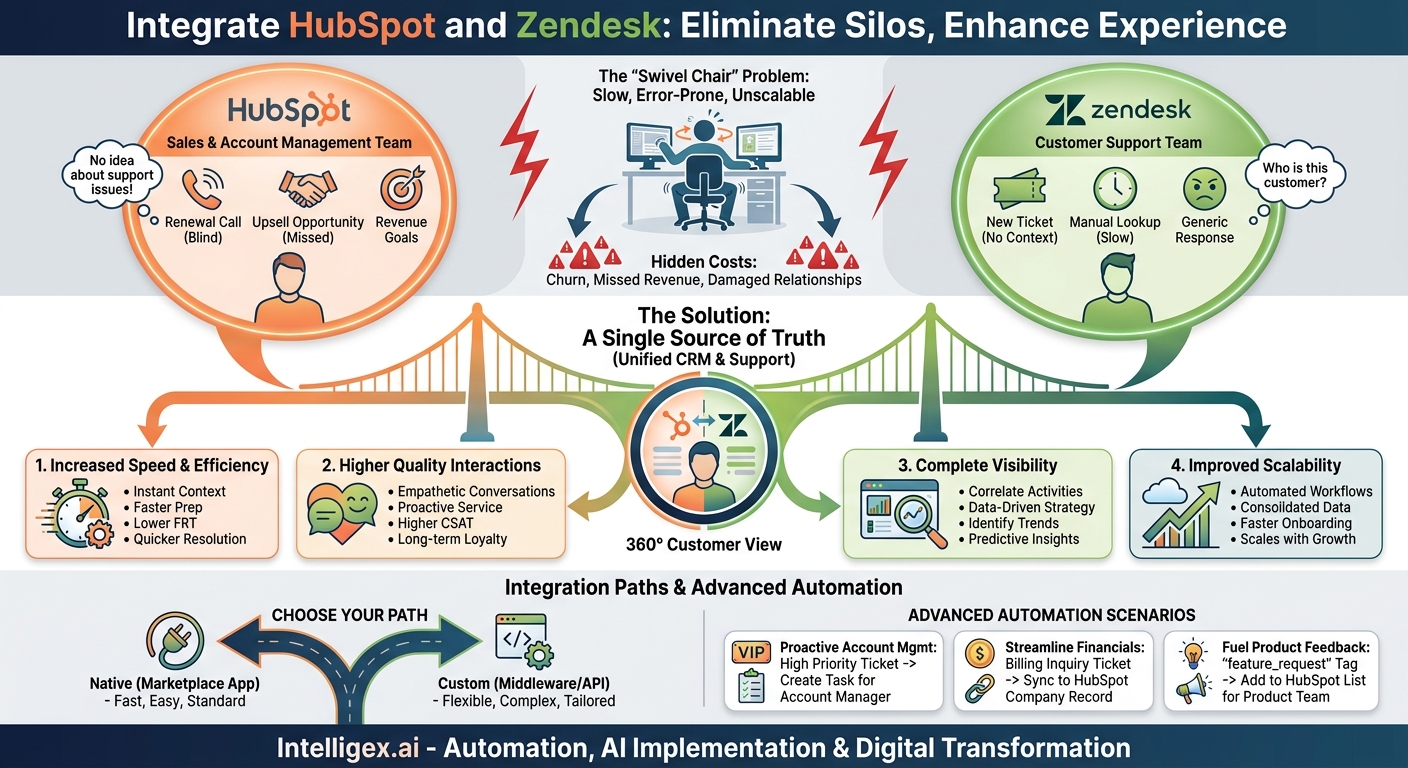
Your sales team lives in HubSpot. Your customer support team lives in Zendesk. This is a standard, effective setup for thousands of businesses. The problem arises in the space between these two platforms. A salesperson, preparing for a critical renewal call, has no idea their client has been battling a high-priority support issue for the past week. An account manager, trying to upsell a new service, is blind to a growing pattern of small, frustrating bugs that are eroding the client’s trust. This disconnect isn’t just an inconvenience; it’s a silent source of churn, missed revenue, and damaged customer relationships.
The “swivel chair” interface, where employees have to manually jump between systems to get a complete picture, is slow, error-prone, and unscalable. It forces your team to piece together a customer’s story from fragments of information, hoping they don’t miss a crucial detail. Integrating HubSpot and Zendesk directly solves this. It brings critical support context into the heart of your customer relationship management (CRM), creating a single source of truth that empowers your teams to have smarter, more empathetic, and more effective conversations.
Why a Disconnected Tech Stack Is a Hidden Cost
On the surface, having separate, best-in-class tools for sales and support makes sense. But without a bridge between them, you create information silos that introduce significant friction into your customer lifecycle. This friction manifests as tangible business problems that affect multiple departments.
For the Sales and Account Management teams, the biggest risk is flying blind. Imagine a sales executive calling a key account to discuss a new product line, only to be met with frustration because the client has an unresolved, critical ticket open with the support team. This instantly undermines the sales conversation, erodes trust, and can put the entire account relationship at risk. Without visibility into support activity, your customer-facing teams can’t tailor their approach. They miss cues that a customer is unhappy and might be a churn risk, or they fail to identify a happy customer who is a perfect candidate for a case study or an expansion deal.
For the Customer Support team, the lack of context is a major drag on efficiency. When a new ticket arrives, the support agent has to manually look up the customer in the CRM to understand who they are. Are they a brand-new user or a strategic enterprise client? Are they in the middle of a renewal negotiation? This manual lookup process adds precious minutes to every single ticket, increasing both response times and resolution times. It prevents agents from prioritizing tickets strategically, forcing them to treat a VIP customer with the same initial urgency as a free trial user.
This disconnect also impacts strategic functions like Marketing and Product. Marketing teams lose out on a rich source of customer pain points that could be used to create relevant help articles, blog posts, and targeted campaigns. The Product team misses the opportunity to see aggregated data on recurring issues or feature requests, slowing down their ability to prioritize the development roadmap based on real-world customer feedback.
The Business Value of a Single Customer View
Connecting HubSpot and Zendesk isn’t just a technical task; it’s a strategic move that delivers value across four key pillars: speed, quality, visibility, and scalability. By creating a unified view of the customer journey, you transform how your teams operate and how your customers perceive your business.
Increased Speed and Efficiency
When support ticket data appears directly on a contact record in HubSpot, your sales and success teams get instant context. They don’t need to email the support team or search another system. This accelerates their preparation for calls and allows them to respond to customer inquiries faster. For support agents, having HubSpot data (like a customer’s subscription level or recent sales activity) visible within Zendesk allows them to triage and resolve tickets more quickly. This reduction in manual data lookup translates directly into lower First Response Time (FRT) and faster overall resolution times, key metrics for any support organization.
Higher Quality Interactions
Context is the foundation of a quality customer experience. An account manager who can see a customer’s recent support history can open a call by saying, “I see you worked with our support team last week to resolve the issue with reporting. Is everything working as expected now?” This simple, informed statement demonstrates that your company is coordinated and that you value the customer’s time. It transforms a generic check-in call into a meaningful, proactive conversation. This leads to higher customer satisfaction (CSAT) scores and builds the kind of long-term loyalty that drives growth.
Complete Visibility
A true 360-degree customer view is the goal of any modern business. This integration is a massive step toward achieving it. Your leadership team can now build HubSpot dashboards that correlate support activity with sales outcomes. For example, you can analyze if customers with a high volume of support tickets are less likely to renew, or if customers who receive fast support are more likely to purchase additional services. This visibility allows you to move from reactive problem-solving to proactive, data-driven strategy.
Improved Scalability
As your company grows, the “swivel chair” method of checking multiple systems breaks down completely. The volume of data becomes too high to manage manually. An integration automates the flow of information, ensuring that your processes can scale with your customer base. New salespeople and support agents can get up to speed faster because the information they need is consolidated in one place. Automation workflows, triggered by data from both systems, can handle routine tasks, freeing up your teams to focus on high-value activities.
Choosing Your Integration Path: Native vs. Custom
Once you’ve decided to connect HubSpot and Zendesk, the next critical decision is how to do it. There are two primary paths, each with its own set of advantages and disadvantages. The right choice depends entirely on your business’s complexity, budget, and technical resources.
The Native Integration (Marketplace App)
This is typically the fastest and most straightforward approach. Both HubSpot and Zendesk have official marketplaces that feature apps designed to connect the two platforms. The official “Zendesk by HubSpot” app, for example, is built and maintained to provide core functionality out of the box.
Pros: It’s generally quick and easy to install, often in just a few clicks. The cost is low or sometimes free. Since it’s an official app, it’s maintained by the vendors, so you don’t have to worry about API updates breaking your connection.
Cons: The functionality can be limited. It might only sync standard fields and objects, and it may not support your company’s specific custom fields or complex workflows. You are dependent on the vendor’s roadmap for any new features.
Best for: Companies with standard sales and support processes, businesses that are just starting out with integration, and teams without dedicated IT or development resources.
The Custom Integration (Middleware or Direct API)
For businesses with unique processes, a custom integration offers limitless flexibility. This path typically involves using an integration platform as a service (iPaaS) tool like Workato, Zapier, or Make, or it can involve writing custom code to directly connect the HubSpot and Zendesk APIs.
Pros: You have complete control over the integration. You can map any custom field to another, create multi-step conditional logic (e.g., “if a ticket from a VIP customer is created and contains the word ‘outage,’ create a high-priority task for the account manager and send a Slack notification”), and connect more than just two systems into a single workflow.
Cons: This approach is significantly more complex and expensive. It requires technical expertise to build and, crucially, to maintain. When HubSpot or Zendesk updates their API, you are responsible for updating your integration to ensure it doesn’t break.
Best for: Larger organizations with specific or complex workflows, companies with custom data objects in their CRM or support tools, and businesses that need to orchestrate data flows across multiple applications, not just two.
Use this short checklist to guide your decision:
- Do we primarily use standard fields and objects in both platforms? (If yes, lean toward Native).
- Do we have access to development or integration specialist resources? (If no, lean toward Native).
- Is our primary goal simply to view support data in the CRM? (If yes, lean toward Native).
- Do we need to trigger complex, multi-step automated workflows based on data from both systems? (If yes, lean toward Custom).
- Is our budget for this project limited? (If yes, lean toward Native).
A Step-by-Step Guide to a Basic Native Integration
Getting started with the native HubSpot-Zendesk integration is a straightforward process that you can often complete in under an hour. Following these steps will establish the foundational connection, allowing you to start realizing the benefits of a unified customer view almost immediately.
- Conduct a Pre-Flight Check: Before you begin, ensure you have the necessary permissions. You will need to be an administrator in both your HubSpot account and your Zendesk account to authorize the connection between the two applications. It’s also a good practice to inform both your sales and support team leaders that you are beginning this process.
- Locate and Install the App: Navigate to the HubSpot App Marketplace. You can find it by clicking the Marketplace icon in the main navigation bar of your HubSpot portal. Search for “Zendesk” and select the official integration app. Click the “Install app” button and follow the prompts to authorize access. This will involve logging into your Zendesk account and granting HubSpot permission to access your data.
- Configure the HubSpot View in Zendesk: The integration works both ways. In Zendesk, the app will add a new panel to your ticket view. Here you can configure which HubSpot properties you want your support agents to see. Start with the basics: display the Contact Owner, Lifecycle Stage, and Subscription Level (if applicable). This gives your support team immediate context about who they are helping.
- Configure the Zendesk Card in HubSpot: This is the core of the integration for your sales and success teams. In HubSpot, navigate to a contact or company record. You should see a new “Zendesk” card in the right-hand sidebar. You can customize the properties that are displayed on this card. At a minimum, you should show the ticket ID, subject, status (open, pending, solved), and priority. This provides an at-a-glance summary of all support activity for that contact.
- Test the Workflow End-to-End: Never assume an integration works without testing it. Find a test contact that exists in both HubSpot and Zendesk. Create a new support ticket for them in Zendesk. Then, go to that contact’s record in HubSpot. Do you see the new ticket appear in the Zendesk card? Now, update the ticket status in Zendesk to “pending.” Does the status change in HubSpot? This simple test verifies that the data sync is active and working correctly.
- Train Your Teams: Technology is only useful if people know how to use it. Hold a brief training session for both your sales and support teams. Show the sales team where to find the Zendesk card in HubSpot and explain how to use that information to prepare for calls. Show the support team where the HubSpot information appears in Zendesk and explain how they can use it to prioritize and personalize their service.
Beyond Viewing Data: Advanced Automation Scenarios
Simply viewing support data in your CRM is a great first step, but the true power of integration is unlocked when you use that data to trigger automated actions. This is where you can build intelligent workflows that save time, enforce business processes, and create a truly proactive customer experience. These scenarios often require a more capable integration path, such as an iPaaS tool or a custom solution.
Scenario 1: Proactive Account Management
Trigger: A new Zendesk ticket is created with “High” or “Urgent” priority for a contact whose Lifecycle Stage in HubSpot is “Customer” and who belongs to a “Tier 1” or “Enterprise” account.
Action: The integration automatically creates a task in HubSpot and assigns it to the HubSpot Contact Owner (the account manager). The task description includes the Zendesk ticket number and subject line, with a due date of 24 hours. The task instructs the account manager to personally follow up with their client to acknowledge the issue and offer assistance. This ensures that your most valuable customers receive white-glove service during critical support events, reinforcing your commitment to their success.
Scenario 2: Streamlining Financial Inquiries
Trigger: A Zendesk ticket is created and the “Form” or “Type” field is set to “Billing Inquiry.”
Action: The workflow automatically syncs the ticket ID and a direct link to the Zendesk ticket into a custom property on the associated HubSpot Company record called “Recent Billing Ticket.” This gives your finance and renewals team instant visibility into any billing-related questions a customer has had, which is invaluable context during renewal or collection conversations. It prevents the awkward situation where a finance representative calls about an overdue invoice while the customer is simultaneously disputing a charge via a support ticket.
Scenario 3: Fueling the Product Feedback Loop
Trigger: A support agent in Zendesk adds the tag “feature_request” to a ticket.
Action: The integration automatically finds the associated contact in HubSpot and adds them to an active list called “Feature Requestors.” The contents of the ticket can also be synced to a note on their contact record. Your product and marketing teams can now use this list to send out surveys, invite customers to beta programs for new features, and announce when a requested feature has been launched. This closes the loop with customers, making them feel heard and valued, and provides the product team with a direct line to engaged users for feedback.
Measuring the Impact of Your Integration
To justify the investment in an integration project, you need to measure its impact. By tracking a few key metrics before and after implementation, you can build a clear business case and demonstrate the return on investment (ROI). Focus on metrics that directly tie to the goals of speed, quality, and visibility.
Support and Service Metrics
The support team is often the first to feel the benefits of improved context.
- First Response Time (FRT): With customer data from HubSpot readily available in Zendesk, agents spend less time on research and more time on responding. You should expect to see a decrease in your average FRT.
- Full Resolution Time: Better context leads to faster diagnosis and resolution. Track the average time it takes to fully solve a ticket. This should also trend downward.
- Customer Satisfaction (CSAT): As your team delivers faster, more personalized service, customer satisfaction should increase. This is the ultimate measure of a quality interaction.
Sales and Success Metrics
The impact on your revenue teams might be less direct but is often more valuable.
- Customer Churn Rate: By giving account managers visibility into support issues, they can intervene proactively with at-risk accounts. Over time, this should contribute to a lower customer churn rate.
- Renewal Rate: A smoother customer experience and proactive problem-solving lead to happier, more loyal customers who are more likely to renew their contracts.
- Customer Health Score Accuracy: If you use a customer health scoring model, incorporating support data (like ticket volume, severity, and resolution time) will make your scores far more accurate and predictive of potential churn.
Data Governance and Safe Implementation
Integrating systems that hold sensitive customer data requires a thoughtful approach to governance and security. Moving data between platforms automatically can introduce risks if not managed carefully. The goal is to provide your teams with the information they need to be effective, without exposing unnecessary data or violating customer privacy.
First, adhere to the Principle of Least Privilege. This means you should only sync the minimum amount of data required for a specific purpose. For example, your sales team needs to see that a customer has an open ticket and what its priority is, but they probably do not need to read the full, detailed transcript of every support conversation. Configure your integration to only share the essential fields to avoid over-exposing potentially sensitive information.
Next, use the Role-Based Access Controls built into both HubSpot and Zendesk. You can configure the visibility of the Zendesk card in HubSpot so that only certain teams or users can see it. This is particularly important for support tickets related to HR, finance, or other internal matters that should not be visible to the entire sales organization. Create clear rules about who can see what, and why.
Finally, ensure Data Mapping Integrity. During setup, you are connecting a field in one system to a field in another. A simple mistake, like mapping a “notes” field in Zendesk to a “company name” field in HubSpot, could cause significant data corruption. Double-check all field mappings before activating the sync, and have a second person review the configuration. For critical automated workflows, consider implementing a “human in the loop” step, such as a manager approval before a high-stakes action is triggered, to prevent errors from cascading through your systems.
Your Next Steps
Integrating HubSpot and Zendesk is a high-impact project that can deliver immediate and lasting benefits to your business. It breaks down silos, empowers your teams with crucial context, and puts the customer experience at the center of your operations. To get started, follow this simple action plan.
- Audit and Document: Before you build anything, map out your current processes. Interview your sales, success, and support teams. Where do they encounter friction when trying to get a complete view of the customer? What are the most common questions they have to ask each other?
- Define Your Minimum Viable Product (MVP): Don’t try to boil the ocean. Identify the single most valuable piece of information to share between the systems. For most companies, this is simply showing the status and subject of open Zendesk tickets on the HubSpot contact record. Start there.
- Choose Your Path: Based on your MVP and your long-term goals, decide between a native marketplace app and a custom integration. For most businesses, starting with the native app is the most logical and cost-effective approach.
- Implement, Test, and Train: Follow the technical steps to connect the systems, but don’t forget the human element. Test the workflow thoroughly and conduct training sessions to ensure your teams understand how to use their new superpower.
- Gather Feedback and Iterate: After the integration has been live for a few weeks, check in with your teams. What’s working well? What’s missing? Use their feedback to make incremental improvements and plan your next phase of automation.
Your Next Read:
Get a FREE
Proof of Concept
& Consultation
No Cost, No Commitment!
